Bambu H2D Suplemental Training
Prerequisites:
- Must have complete the following training.
- 3D Fab 100 class (rules)
- Bambu sign-off
- Must have complete the following training.
Rules / Printer Priority
Printer
- DO NOT PUT ANYTHING ON TOP OF THE PRINTER
- Be cautious when tilting the screen
- We will not be getting any laser or other tool options for this machine.
- Priority:
- Multi color prints have highest priority for the printer
- Prints that require the larger bed and can't be printed on the large Creality printers
- All other X1's taken.
- Questions about priority see vice chair or chair or please join us in committee meetings.
- AMS 2 Pro
- No Drying Filament:
- This AMS 2 Pro does have the option to dry filament. However, as the drying function only is only when the printer is not in use it is therefore not allowed. We have filament dryers in our space for this specific purpose.
- No incorrect size spools (without adapters) or broken / damaged spools.
- This newer AMS does have more powerful filament motors however as with predecessor it is still sitting on rollers so any damaged spool could cause the filament not to load and therefore your print failing.
- No Drying Filament:
- Rules subject to change as we incorporate the printer into the space.
General differences between X1 and H2D
- Max print area is 350mm x 325mm x 320mm
- Note that this is max print area.The printer has two side by side nozzles resulting in some areas not reachable by the left or the right nozzle.
- Details can be found here Bambu H2D Print Area Details
- Nozzles
- There are two nozzles on this machine one is referred to as "Left" and the other "Right" nozzle.
- One AMS will be fed to the right nozzle, and the other will be fed to the left nozzle.
- Max print area is 350mm x 325mm x 320mm
Pre-print (Initial Bambu Studio setup)
- Verify no print in printer or filaments are in any of the AMS prior to starting.
Adding the printer to your Bambu Studio.
- To ensure you can use the printer in the Bambu studio slicer you will have to add it. Follow screenshots below....
- First click the dropdown next to the printer (Prepare tab) and click select printers...
- After clicking highlighted option above the following screen will appear. Click and put a check-mark next to H2D and click the continue button.
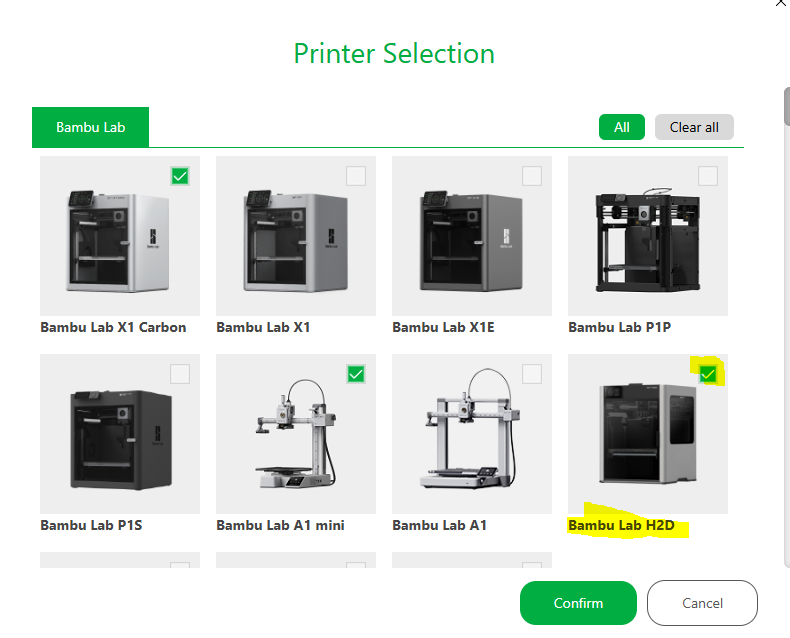
- Do not un-check the X1 or A1 Mini as that will remove the printer from your Bambu Studio profile.
- Once the printer type is added Bambu Studio will now be able to select H2D in printer types for slicing and see it in the devices page.
- First click the dropdown next to the printer (Prepare tab) and click select printers...
- To ensure you can use the printer in the Bambu studio slicer you will have to add it. Follow screenshots below....
Slicing Process
- Watch the below Bambu Video on nozzle and slicing.
- Follow video slicing steps.
- Ensure that the H2D printer type is selected.
- Sync with printer (No filaments in AMS)
- If any filaments are shown in the slicer remove them
- Add filaments you are going to use in your print to Bambu Studio.
- Upload your file and edit as desired.
- When slicing use the option shown in video to give most efficient filament placing.
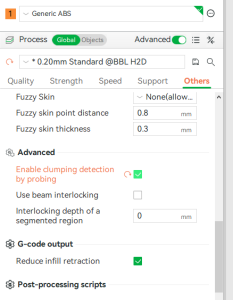
- Recommended: add the clumping detecting when switching from X1 or A1 mini profile to H2D. You could be prompted with a message.
- Here is the Bambu Wiki on Clumping detection.
- To add the detection select click the checkbox under the others tab and scroll down to the Advanced section as shown in the below screenshot.
Filament Loading in AMS's
- load your filament into the appropriate AMS. As outlined by Bambu Studio Slicer recommendations
- Enter the same filaments settings that you specified in Bambu Studio.
Sending to printer
- Verify slice is completed
- Verify you loaded filament in locations recommended by the slicer.
- Click print plate and verify printer filaments and slicer filaments match.
- Confirm and send to printer.
Printing Cautions
- Bent Nozzle blocker: If the guard that switches between nozzles blocking the nozzle should be straight and just touching the nozzle. (see picture below) If it is bent lower please open an issue ticket in talk. Do not use the pritner and place a note that it is down for maintenance. Using the printer when the nozzle blocker is bent could result in damage to your print and to the printer itself.
- The blocker can become bent if for any reason this thin metal part repeatedly hits your print due to layer adhesion issues, spaghetti issues, clumping. etc. To help prevent this part from bending monitor your print and stop and resolve any spaghetti, clumping or other issues.

- Bent Nozzle blocker: If the guard that switches between nozzles blocking the nozzle should be straight and just touching the nozzle. (see picture below) If it is bent lower please open an issue ticket in talk. Do not use the pritner and place a note that it is down for maintenance. Using the printer when the nozzle blocker is bent could result in damage to your print and to the printer itself.