This is a reference guide only intended for those that have completed the in person class however, after some time my benefit from a list of steps as a refresher. If you review and need additional help please reach out to the group via talk or discord and someone will assist.
Do this first at the machine.
- Bed Prep
- Remove the magnetic printing plate from the printer.
- Clean the printer plate with small amount of dishsoap and isopropyl alcohol. Best to use the sink just outside the break room
- Replace the printer plate choosing to use either textured or smooth side up. The textured side of the printer plate
provides a little better grip for the model base. The smooth side provides a slightly smoother base plane. - Note the smooth side may require glue to ensure prints will be easily removed after printing. Below table and link has list of filaments that require glue for the smooth PEI plate.
- https://us.store.bambulab.com/products/bambu-smooth-pei-plate?id=581066408204677122
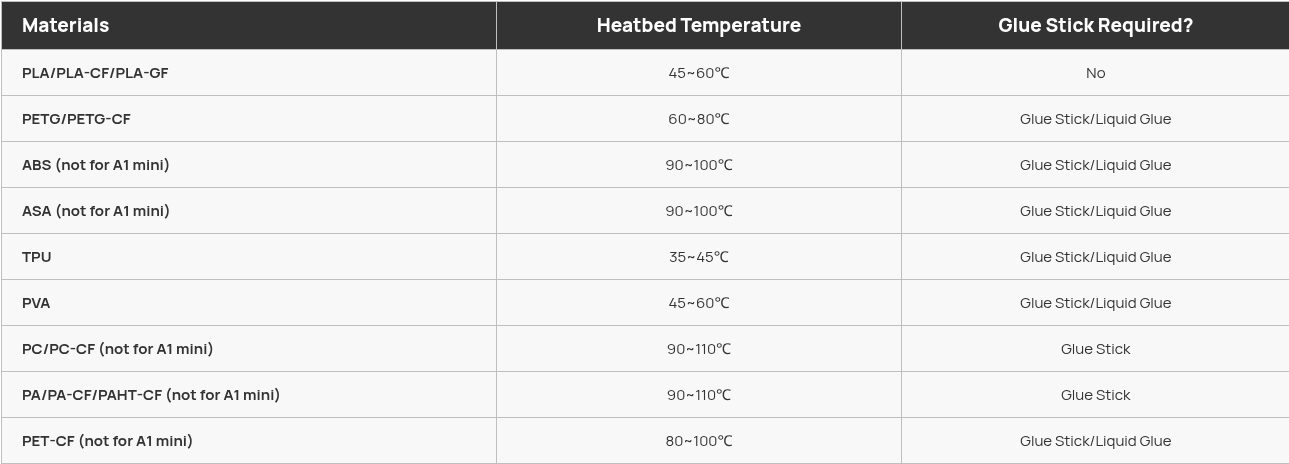
- At the Printer
- Load your filamanet. there are three options to loading.
- X1 Carbon Machines
- Bambu AMS On top of X1 Carbon Printers (all three)
- Turn the two black tabs on the left and right front of the Bambu Lab AMS which will release the semi-cylindrical clear bronze plastic
cover of the Bambu Lab AMS - With the silver handle located at the center front of the cover roll the semi-cylindrical clear bronze plastic
cover of the Bambu Lab AMS back to expose the spool slots. - Place your filament spool in one of the four slots so that the filament end points down.
- Roll the spool back and forth about an inch to confirm that the spool will roll freely.
- With the finger on one hand depressing the grey button near the front center of the spool, with the other hand insert
the end of the filament into the hole near the gray button and release the grey button. - The Bambu Lab AMS should take the filament and run several inches of the filament into the machine.
- Python AMS under Hynaman and Savage (these are best for those having cardboard spools or other not quite standard spool sizes.
- Remove one of the geared spool holders.
- Unscrew the large holding nut
- Place your spool onto the threaded holder then attach and screw down the large holding nut. Ensure when you place your filamant on it will unwind down into the AMS.
- With the finger on one hand depressing the grey button near the front center of the spool, with the other hand insert
the end of the filament into the hole near the gray button and release the grey button. - The Python AMS should take the filament and run several inches of the filament into the machine.
- Single Spool holder (Savage)
- This is to be used for filaments or spools that cannot be used in either the Bambu AMS Or Python AMS. One example is TPU.
- There is a separate source page for loading and unloading the single spool holder. The link can be found here.
- Single Spool Holder Guide.
- A1 Mini
- Place your spool onto the holder
- With the finger on one hand depressing the grey button near the front center of the spool, with the other hand insert the end of the filament into the hole near the gray button and release the grey button.
- The AMS should take the filament and run several inches of the filament into the machine.
- On the settings screen click the appropriate button to bring up the filament settings
- On the X1 series it is under the settings screen then click on the icon in left side of screen that looks like a spool.
- Choose the filament type loaded into the Bambu Lab AMS. Options are like Generic PLA, Generic ABS, ect.
- Choose the color. The color is not critical but is a way to match up the spool slot to spools shown on the little screen.
- Click Confirm. This completes the filament set up.
- Add your name and details to the whiteboard in front of the printer. Or use a 3D printed nameplate and place on top of whiteboard.
- Note it is best to have your name and number on your filament.
Now at a PC do the following.
- At one of the computers in the DMS 3D Fab Lab login and click on the green desktop icon marked ‘Bambu Studio’
- If you have used this computer before for Bambu printing you should already see DMS in the upper left area. However, often after PC or Bambu studio software updates the profiles can be reset. If you see Login/Register complete the following steps.
- At Bambu Studio home page, at upper left, below black banner, click ‘Login/Register’
- At screen titled ‘Bambu Lab & Makerworld Account’ screen enter Bambu credentials provided in Bambu class
- Check the box marked ‘I agree to terms and privacy policy’. Click green log in button.
- Get verification code from screen with blue tape marked ‘Bambu verifications’ near the west most computer and
enter the code at verification code screen and click the green Confirm button - Click ‘Yes’ at the synchronization screen
- The Loading Presets screen appears and resolves.
- At the ‘File’ dropdown at the top left in the black banner choose ‘Import’ > 'Import 3MF/STL/Step/SWG/AMF…
- Navigate to and open desiredfile.
- Model appears in workspace.
- If necessary, because the model is not on the base plane in the workspace, on grey icon banner,
click on the third icon from left marked ‘Auto orient’. This should make the model base plane align with the workspace base plane. - Select Prepare Click Synch Filaments List from AMS.
- On the Synch dialogue box click Synchronize. Return to the Synch dialogue box choose Resynchronize.
- Right click on the model in the workspace. At the bottom of the drop down choose the Filament option and click Filament.
- At Bambu Studio in the Preview tab at the navbar item titled Printer Choose Bambu Lab X1 CArbon 0.4 nozzle
- At Plate Type choose the plate side that was loaded in step 28, Texturec PEI Plate or Smooth PEI PLate.
- Still in the Printer section of the navbar, in the Support section, depending on the shape and complexity of the model
being printed check the checkbox marked "Enable support’. - If "Enable support’ is checked at “Type”, from the drop-down box "normal(auto), tree(auto) or other support.
- At the black banner at the top click Slice plate.
- Click Print plate
- At Print Plate dialogue box checked to make the option selected are correct.
- Click 'Print"
- Add start time to the whiteboard.
- Ensure that the first layer prints without issue. After first layer is completed you if your print is long you can monitor via phone app and return when it is completed. Note that if your print is on the printer for enough time it will be moved to the Purgatory area in the corner of storage just across from the computers.